Blender to Roblox: Which Format, OBJ, FBX or GLTF?
Table of Contents
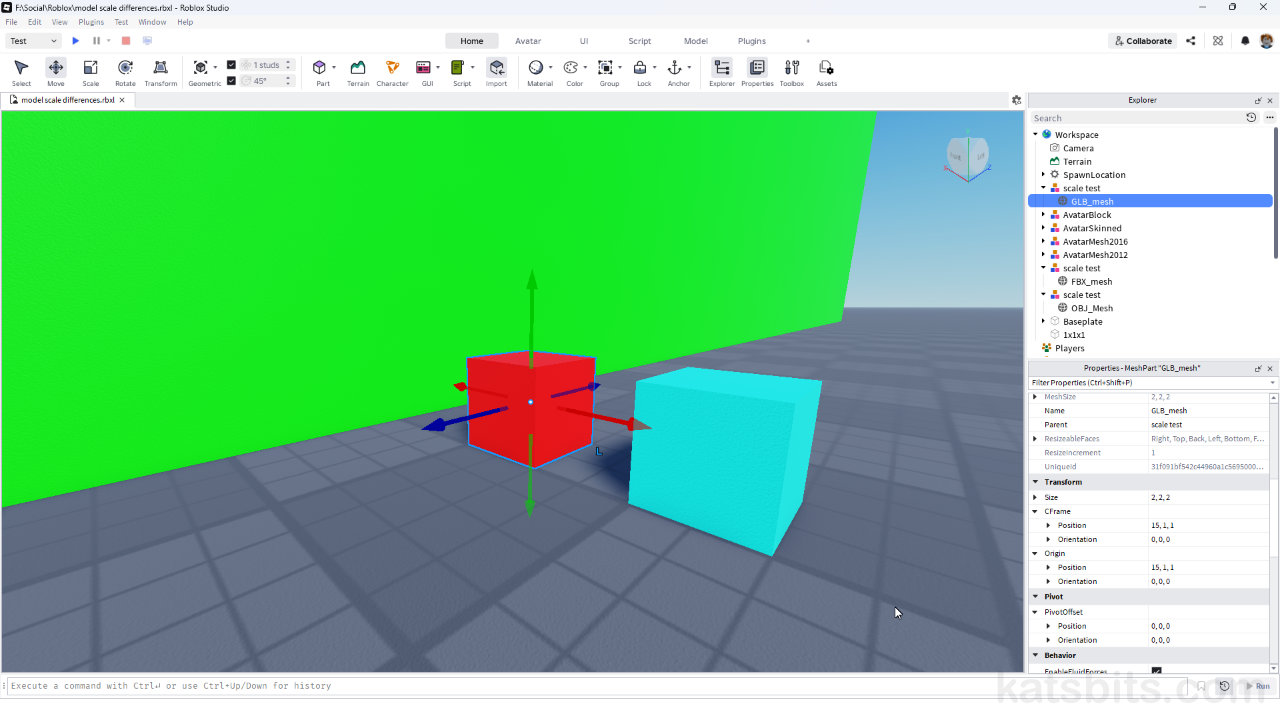
Both Blender and Roblox Studio use the same scaling to define their base units of measurement, metres. This ensures objects exported from Blender are the exact same size in Roblox Studio. However, depending on the format used, OBJ, FBX or GLTF (GLB), models may appear incorrectly scaled, a pain-point for productivity that raises questions on how best to make models for export from Blender to Roblox Studio, and what mesh (file) format to use.
OBJ vs. FBX vs. GLTF
The three main mesh or model formats Roblox can import and use are; OBJ, FBX and GLTF (GLB).
OBJ
OBJ (Object) files are safe for static, non-animated objects or environment pieces as they’re a low overhead text-based format that’s mesh-specific. Data typically exported include mesh, UV, vertex colours, textures, and PBR materials to a limited degree.
FBX
FBX (Filmbox) files can be used for both static and animated objects, characters, environment pieces or other content. Data that’s typically accommodated includes mesh, UV, vertex colours, textures, and PBR materials. Along side this, both skeletal (Armature) and morph (Shape Key) animations can be included.
GLTF
GLTF (Graphics Library Transmission Format) can be used for both static and animated object, characters, environment pieces and other game content. Data typically includes mesh, UV, vertex colours, texture, and PBR materials. Alongside this, both skeletal (Armature) and morph (Shape Key) animations are supported.
Which Format is Best
In practice, OBJ, FBX and GLTF perform equally well for MESH data, so usage is largely down to availability, familiarity or workflow preference rather than strict utility. For ANIMATED objects and content, FBX and GLTF perform much the same from a workflow perspective. However, because FBX is a much older format its more broadly available than GLTF but lacks support for more modern data types or complex structures.
Important: FBX scaling issues in Roblox… [more]
Design note: types of relational skeleton… [more]

A simple game object configured for animation using an Armature in Blender.

For static content like accessories OBJ, FBX and glTF are functionally the same. For animated or more complex items FBX, or preferentially glTF, should be used.
Object Size
For Roblox content creation, objects should be made at-scale in Blender, that is, the size they need to be in Roblox. As both applications use the same underlying units of measurement, models should appear the same size/scale in Roblox Studio as they do in Blender – a 1 x 1 x 1 cube should be the same size regardless. While Blenders grid and Unit properties can be tailored to Roblox, the defaults function just as readily for proper scaling. Alternatively, for more accuracy, or for a better fit, reference objects can be exported from Roblox and imported into Blender for scaling, either a Part that’s a defined size (e.g. 1 x 1 x 1 block), or an R6 or R15 character base (mesh export only).
Design note: which Roblox avatar to use… [more]

Exporting a base character from Roblox to use as a size/scale reference in Blender.

When making content for Roblox in Blender, as they both use the same unit of measurement, model ‘at scale’ as they obejct should appear in-game.
