Fixing Mesh Orientation Issues in Roblox
Table of Contents
Using Blender to create content for Roblox, the way it sometimes treats models causes considerable friction because depending on the context, meshes unexpectedly misalign or orientate themselves on the character, or in the world, as a direct consequence of the engine ignoring positional data (Apply Transforms) set in Blender. Instead Roblox seems to place objects at bizarre angles that don’t make sense to how they are being manipulated, resulting in a number of issues that require frequent correction or adjustment. The only consistent solution for this is to use a proxy object around which the game-entity is then built.
Blender Prep
The typical workflow for making Roblox models using Blender is to set them up relative to grid centre, 0,0,0, once they’re ready for export. Preparation for this might mean offsetting the mesh or repositioning the Origin based on how the item is going to be used. In doing this, there is an expectation of correspondence, that meshes will appear the same in Roblox Studio as they do in Blender. During import into Roblox Studio however, the original coordinates and spatial data of the object can be stripped and replaced by a set of autogenerated, localised, coordinates that redefine where the origin is based on the models Bounding Box. This creates a number of workflow issues;

Mesh optimally positioned, with its Origin, at grid centre in Blender relative to how its expected to be used.
-
Autogenerated Bounding Box
Roblox Studio doesn’t know what the imported object is or how its supposed to be used. Nevertheless, it still has to make some basic determinations about objects for physics and local positioning based on what it does know, the objects Bounding Box, the area or volume the object occupies in space. In knowing this, Roblox can calculate the absolute geometric centre of the volume which, for avatar based items, is then used as the default mount point, snapping objects into the players hand at this new, autogenerated, Centre of Mass.

After import into Roblox Studio, mesh components use a reset origin based on the Bounding Box centre-of-mass; all transforms are calculated from that pivot or manipulation point instead of the objects embedded origin. -
Runtime Coordinate Scrubbing
As a consequence of the way Roblox treats models, when placed in the StarterPack folder to ensure proper avatar loadout during runtime testing, as these items cease to then be part of the active world (Worldspace) – they’re compressed game-object templates – the moment the player spawns and equips the item, Roblox duplicates the template and passes it through its automated assembly pipeline, which can reset and scrub manual coordinate adjustments made to the top-level asset container (“Tool”, “Accessory”, etc.) to guarantee consistent placement and connection to the character. While in the runtime environment, subsequent changes don’t always hold because the simulation resets and re-strips coordinate data whenever it runs.

Set up as an Accessory item, the green sphere represents the location of the reset autogenerated origin based. While this can be manipulated, objects may keep relocating to this location regardless. -
Rotational Lock
A similar consequence to resetting the origin relates to the way Roblox calculates rotational values, for example, setting the Y axis of an object to 120° in the Properties panel might result in Roblox unexpectedly recalculating the angle to fit within the confines of a global gimble-lock for all axes, making it almost impossible to achieve the needed 121° value.

Roblox uses Eular math to calculate rotational and positional values, which often result in unintuitive angles shown in the Properties panel.
Proxy Entity Setup
When typical mesh-as-entity setups don’t work in Roblox Studio the solution is atypical. To make a predictable and stable asset, it’s crucial to separating physics calculations, where the item is and how the world interacts with it, from the visual rendering of objects – what’s seen on-screen. Instead of forcing the engine to calculate physics on a mesh it considers to be an irregular shape, a proxy, a simplified regular shape, can be used as a sacrificial placeholder within which nests the game asset. This forms an isolated local coordinate space the engines global scrubbing heuristics can’t touch, leaving the game asset to be more easily modified without the confusing Eular gymnastics.

Proxy Handle in place using reset rotational coordinates.
Proxy Hierarchy
For the atypical solution to work, the proxy object takes on the Handle elements role within the overall hierarchy, it becomes a “ghost” object that’s relatively small, so it doesn’t interfere with gameplay mechanics, and renders invisible, so its never seen. Because the object is simple, a cube, Roblox doesn’t have to interact with anything else in the hierarchy below the proxy; all math is attributed to the Handle as a fixed, or known, anchor. For example, while a potentially problematic but traditional setup might be;
Tool/Accessory (game entity)
» MeshPart (mesh Handle)
» » Attachment (anchor)
Using an isolation proxy Handle, the setup then changes to;
Tool/Accessory (game entity)
» Part (proxy Handle)
» » Attachment (anchor)
» » MeshPart (custom mesh)
» » WeldConstraint (‘parent » child’ link)
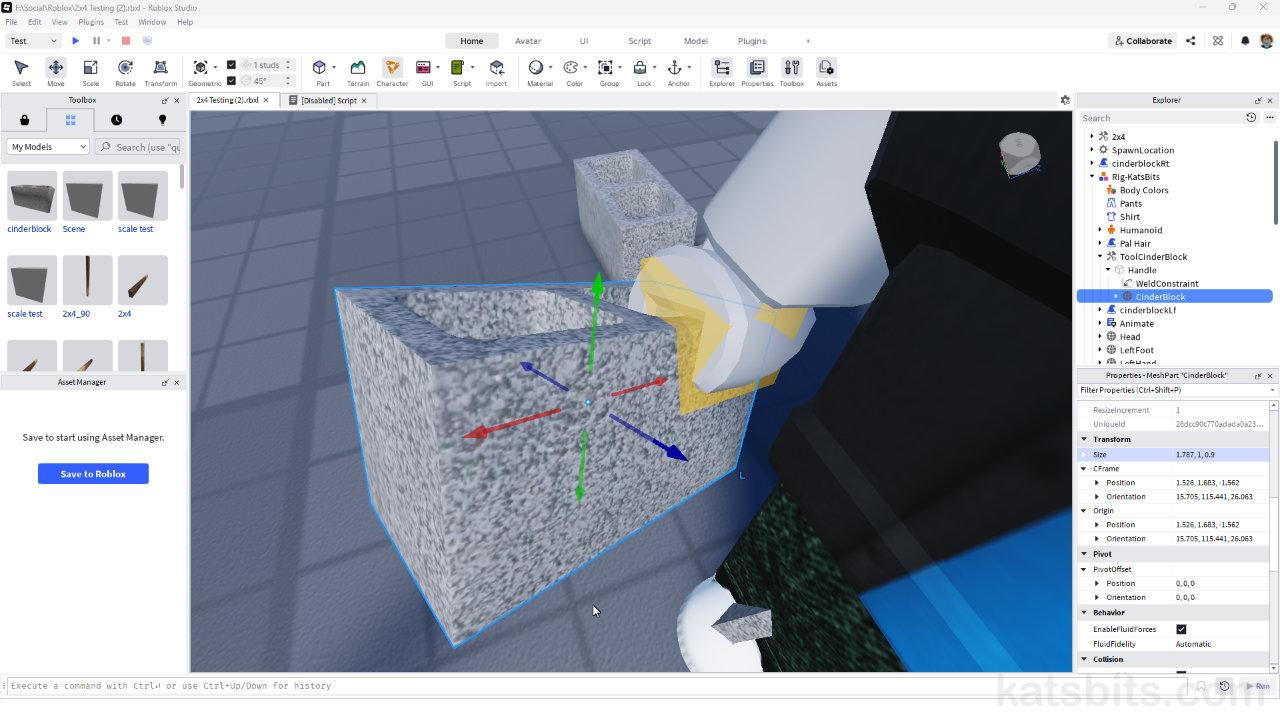
There are a few more sub-elements to the overall game entity, but in practice, this setup means the proxy Handle gets used by Roblox to determine hand-attachment physics, associated collisions and other character/item welds, what goes where, liberating the game mesh from those responsibilities, its simply an object for visual rendering that’s piggy-backing along for the ride. And being detached, the standard Move, Rotate and Scale tools can be used to arbitrarily (re)position the mesh relative to the invisible parent object, the proxy Handle, without needing to manipulate it and run the risk of breaking the entities alignment and orientation characteristics.


Proxy Handle element (orange box for clarity) used as an anchor or target Roblox uses to attach the game object to the mount point at the characters hand, freeing the mesh to be moved arbitrarily – note orientation of proxy to hand, and mesh to proxy.
