Roblox Studio vs. Avatar Source Files: Key Differences & Tips
Table of Contents
Description
Roblox provides a number of official avatar source files for content creators to use when making items for use in game. However, when opened in Blender they don’t quite match what is seen in Roblox Studio when assembling models exported from Blender. This difference creates friction for workflow processes that can mean wasting time troubleshooting, trying to figure out what’s going on and why exports aren’t working as expected. Here, we take a look at those difference and what to look out for when making items for Roblox.
Duration: total c. 1 hr (01:00:00).
Info: 1080p.
Suitability: Beginner+.
Source: Roblox Avatar Source files (official).
Product ID: n/a.
Origin/Root Position
The origin, or root, of the official avatar source files for Roblox, and the avatar exported from Roblox Studio differs. When both files are opened or imported into Blender, the character doesn’t appear in the same place; the source file avatar is buried up to its midriff in the group plain, the exported avatar stands on it.
Design note: grid floor… [more]
From a workflow point of view, this difference creates friction because objects are located in relation to the origin so for the official source files, some objects will use negative space coordinates to define where they are, whereas using the exported avatar, objects always appear in positive space. In game, as the avatar is ‘corrected’ and repositioned to stand on the ground plain, this difference might be out of sync with expectations when looking that coordinate values in the Properties inspector.
Design note: Roblox mesh import reset… [more]
The origin or root of the avatar differs between the official source files and the avatar exported from Roblox StudioBone Orientation
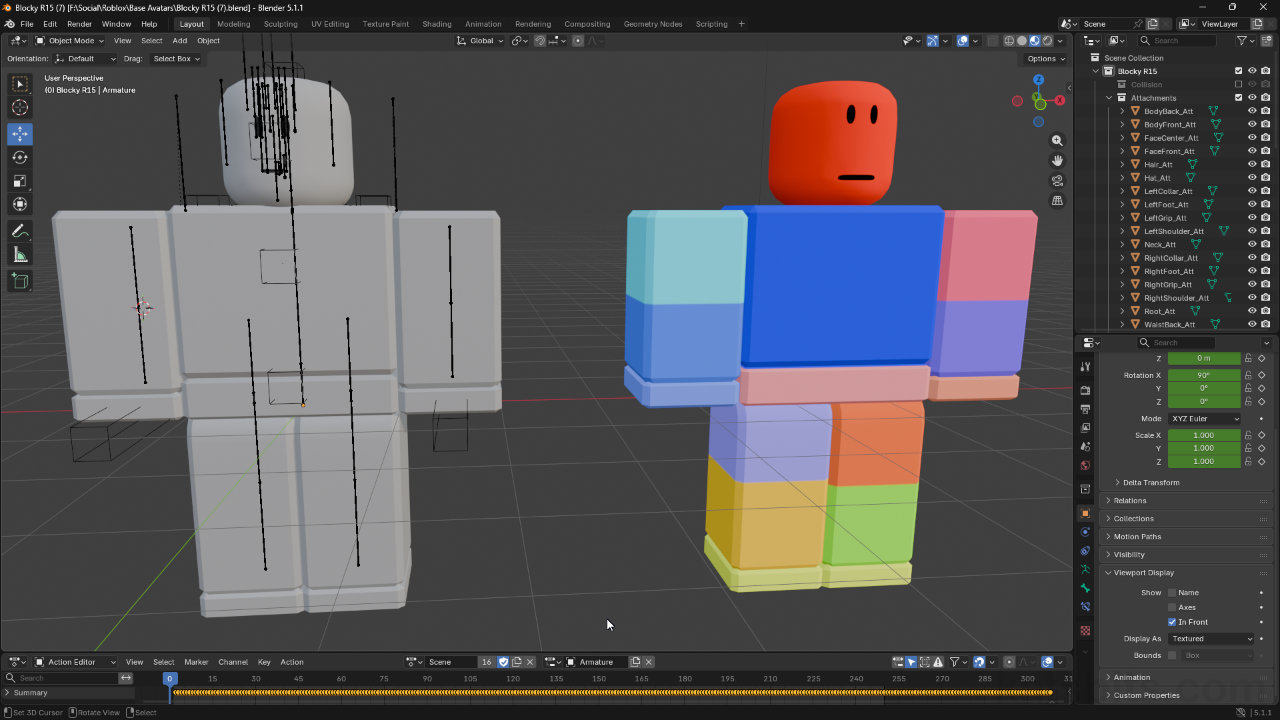
When looking at the skeleton (Armature) included with the sources files, a number of bones are positioned upside-down relative to normal expectations in Blender, arms and legs especially. This doesn’t ‘break’ the skeleton per se, bones still articulate around their origins, but because the bones are inverted, the parent » child relationship is flipped, which in-turn affects how they articulate in relation to each other, making them overly ‘sensitive’ during manipulation, particularly when an Inverse Kinematic solver is applied – without a direct connection between bones, moving IK controlled chains results in wild behaviour because there’s no stabilising or physical link between individual bones to temper movement.
Design note: bone relations and pivot points… [more]
Image-left: source skeleton with arm and leg bones inverted and disconnected. Image-right: rebuilt (body only) ‘Blender compliant’ skeleton with connected and properly orientated bones.Mesh Cages (Layerable Items)
Both the source files and exported avatars include an extra set of meshes that sit atop the different body parts. This shell, or ‘cage’, primarily defines a boundary between different layers of clothing to prevent clipping or intersection and ensures meshes conform properly to different body types and shapes. Typically hand-held and other types of accessory item don’t need to be set up with cage system, but can where necessary for layered or layerable, non-clothing items, e.g. backpack, bags etc. They are not specifically needed when making something in Blender for export as an accessory for Roblox.
In Blender cage meshes are lower resolution versions of clothing or other layerable items. They typically form a skin or form-fitting ‘bag’ over an object and describes general shape and volume rather then feature detail – shape of a shirt rather than folds and creases (unless significant). To function properly in-game two meshes are needed for each layerable item; 1) an inner cage ([object]_InnerCage), and 2) and an outer cage ([object]_OuterCage). The inner cage is derived from the inside (internal) surface of the object, the outer cage is derived from the objects outer shape. Meshes are not joined so should remain individually selectable, exported as a group from Blender along with the clothing or layerable item.
Design note: clothing cages are not collision… [more]
Displayed as wireframe for clarity, cage meshes sit proud of the avatar forming a shell that defines a boundary over which other layerable items sit but won’t clip through or intersect.UVs & UV Maps
Both avatar source files and avatars exported from Roblox Studio are UV Unwrapped the same way, so no matter which avatar is used, the UVs are consistent across each source. They differ however, in how the UVs are mapped to their respective images; depending on the avatar base type, R6 or R15, body parts are grouped and then mapped to a corresponding image as a group to ensure uniformity.
Important: source files and UV mapping… [more]
For the official avatar source files this means separate UVs and mapping for the legs, arms and torso as distinct groups; legs are one group, arms another, torso yet one more, the head having an image to itself. That is, four (4) material assignments per grouping, with four (4) corresponding images, one per;
• right/left arm – upper, lower and hand
• right/left leg – upper, lower and foot
• torso – upper and lower
• headThe exported avatar on the other hand, maps these same UVs to a single image or atlas, each part of the avatar occupies its own area of a single, larger image, that’s generated as an optimisation during runtime by baking or merging each image asset into the larger sheet that technically, doesn’t represent the avatar in its raw state, so should only be used as an in-game, real-time reference.
Image-top: both arms of the official source files for Roblox showing how they map to the same image and overlay. Image-bottom: the same ‘blocky’ avatar exported from Roblox Studio with the same body parts selected showing the same UVs but mapped to their own area on a single, much larger optimised ‘atlas’ image.UVs & Image Mapping
While UVs are mapped uniformly for both the source files and exported avatars, the images they are mapped to differ, specifically their ‘real’ size. Looking at the avatar source files with a checker image assigned in Blender, various degrees of distortion can be seen depending on the body part, the torso and legs for example distort more than the arms. This presents two issues;
• image size/dimensions
• texture (tixel) densitySo, although the UVs for each mesh are mapped to Power of Two (PoT) square (1:1 ratio) or rectangular images (2:1 ratio), mapping disparity in in the UVs result in distortion and non-uniform scaling – the checkers render at slightly different sizes and squareness relative to each other. To prevent this, and ensure proper rendering, image dimensions can be adjusted to compensate for the differences in Blender. To maintain texture density and minimize distortion, using a ‘256’ PoT baseline, the effective (art) vs. virtual (rendered) size for each image is approximately (width x height);
• Head – 256 x 256
• Torso – 750 x 590
• Arms – 512 x 512
• Legs – 512 x 700Important: UV mapping and texture density… [more]
Design note: texture atlas’ and game rendering… [more]
For content production this is important to understand when using the official source files for the avatar; the canvas should be painted at actual size in an image editor, then either; exported without change on the expectation that Roblox will automatically resize the images on import or during compilation at run-time; rescaled to conform with proper power of two sizing, exported and then loaded into Studio. This ensures Roblox will remap the images correctly and proportionately i.e., it’ll auto-sized a 512 x 512 as though it were mapped to a 750 x 590.
Design note: image size and proper dimensions… [more]
To maintain texture density across the avatar, texture sizes vary depending on what they map on to.Skeleton Rebuild
The official ‘blocky’ avatar source files includes a full skeleton that, while not optimally set up for Blender, can be used to create content for Roblox. Blocky however, being made from simple primitive shapes, doesn’t match any of the other in-game avatars except ‘blocky’. And while there are a number of avatar source files available, they too don’t match common character types. This forces exporting an avatar from Roblox Studio, typically one of the available body types that, as they’re typically used for reference, don’t include a functional skeletal set up, so one needs to be built after import into Blender using an Armature. Once dropped into place, bones can be added to match-up to pivot points around which limbs and body parts rotate. After parenting to the Armature, the character can then be articulate or animated within Blender.
Important: custom skeletons don’t work in Roblox… [more]
The avatars skeleton can be rebuilt using an Armature and the ‘pivot points’ included with the exported character, each axes is a location for the head/tail location of individual bones.Orientation Math
Roblox uses Euler math for coordinate data, position (location) and rotation (orientation). This can be seen in Roblox Studio when the Orientation or Position of an object or selection is changed along, or around, its X, Y, or Z axes in the Properties panel. This coordinate system is also used to define objects during exported from Studio. Exporting an avatar for example, Roblox uses Euler’s to define the objects physical characteristics that, when imported into Blender, displays correctly because it too, uses Euler defined system. There is a 1:1 correspondence between Roblox Studio and Blender.
The official avatar source files however, do not correspond as readily. Instead, models have been constructed around a Quaternion based coordinate system that differs functionally in how math is used and displayed. For example, rotation is limited to a fixed range, +/-1.000, so rotating something by 90° on the Y axis is not displayed as “Y: 90°” but “Y: 0.707”. XYZ Euler on the other hand uses +/-° (degrees) so that same 90° would be displayed as “90°”.
From a workflow perspective this presents the creator with friction because the rotational aspect of transformation isn’t immediately intuitive; using Euler, 45 is 45, 12.5 is 12.5 and so on, using Quaternions, rotation seems arbitrary, requiring extra math to calculate precise manipulations.
Design note: unit of measurement in Blender… [more]
A Roblox avatar shown rotated 90° on the Y axis and the corresponding coordinate display in Properties.


Timestamps
Times are approximate;
– 00:00 : Intro
– 09:00 : Origin Issues
– 12:00 : Bone Issues
– 15:00 : Collision Issues
– 30:00 : Bone IK Issue
– 35:00 : UV & Texture Issues
– 43:00 : Face Rig Issues
– 46:00 : Rigging Issues
– 54:00 : Coordinate Issues
