FBX Batch Export Add-on with Rotation
Table of Contents
Supplementary to the simple FBX batch export Add-on for Blender, the Add-on below adds a ‘rotation fix’ that allows for custom orientation data to be saved to file. This is useful for Blender originated models because the applications uses a different global orientation axes relative to other applications. When these files are then imported, the orientation data inadvertently causes rotation issues, meshes appearing incorrectly rotated. The FBX Batch export script can now add optional axis information to files so upon import, model load with the correct orientation.
Download: KatsBits FBX Batcher + Rotation Fix (c. 10 KB | *.py).
Design note: the FBX Batcher exports static, non-animated, objects only.
Usage
The FBX Export Batcher includes a number of options to selectively export objects from a Scene so no special prep is necessary. This might mean working on projects as normal to accommodate production while being mindful of maintaining a Collection hierarchy in the Outliner that will aid the eventual export process. For example, if the contents of a particular Collection need to be exported, but this also includes some ‘working models’, objects not meant for inclusion, simply hide them in the existing Collection, then during export, make sure to enable the “Export Visible Only” checkbox. This forces the the export process to exclude any objects hidden from view in a Collection.

A typical project might include objects that don’t need to be exported. These can simply be hidden, and then the Export Visible Only option set during export, to exclude them.
Settings
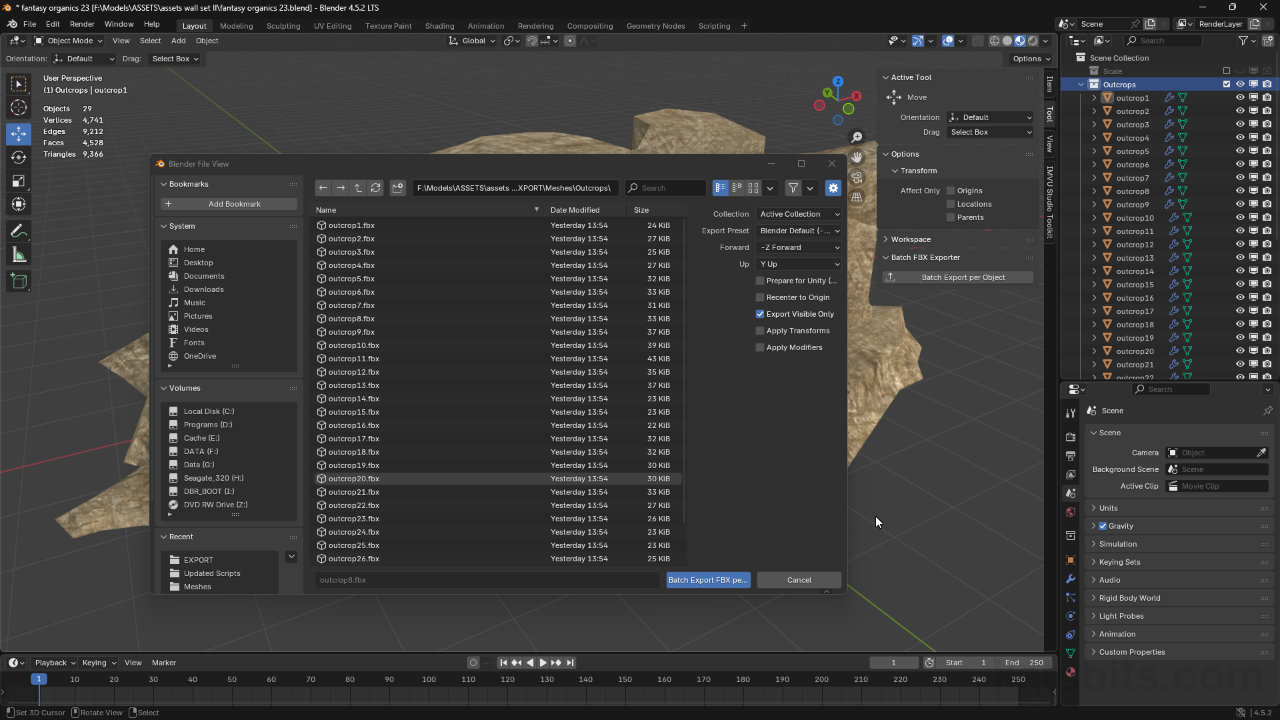
After initialising the FBX exporter, either from File » Export » Batch FBX per Object (Custom), or in the Sidebar (N) clicking the Batch Export per Object button in the Tool tab, ensure the ‘Settings‘ panel is visible (should be shown by default, press N with mouse over the Blender File View instance if not). Here the options are;
Drop-down
- Collection: list of Collections available to export from[1].
- Export Preset: common orientation axes – Unity, Unreal, Max, Custom.
- Forward: defines ‘forward’ -X/X, -Y/Y, -Z/Z axis[2].
- Up: defines ‘up’ -X/X, -Y/Y, -Z/Z axis[2].
Check boxes
- Prepare for Unity (bake -90° X rotation): forces Unity rotation fix[3].
- Recenter to Origin: objects temporarily repositioned at 0,0,0 during export.
- Export Visible Only: only exports visible objects.
- Apply Transforms: global “Apply” Rotation, Scale, Location on all objects.
- Apply Modifiers: global “Apply” on the modifier stack (top-down)[4].
[1]the exporter will only process the contents of the active Collection defined in Collection, others will be ignored but can be selected and parsed running the exporter again.
[2]if a preset is used, Forward and Up will auto-set to the correspond axes associated with the preset.
[3] to accommodate Unity Editors ‘Blender rotation fix’ post-import processing filter, when Prepare for Unity (bake 90° X rotation) is set, the exporter will pre-rotate and then bake the change into the resulting FBX so objects appear correctly orientated in Unity Editor – note that even though rotation is baked into the mesh, some additional correction may still be necessary due to the way Unity aggressively interprets Blender authored meshes and objects.
[4] the modifier stack is applied agnostically which may cause issues due to the way effects can compound i.e., applying Mirror before Subdivision will likely malform the mesh. To avoid this, manually Apply modifiers before export.

The available settings for the FBX Batch export Addon with rotation option – these will batch process objects within a Collection, exporting them as individual FBX files based on the properties set.
Scene & Object Prep
When prepping object for export make sure they are set up with respect to how they are going to be used (in no particular order);
- set Origin relative to the object/use[5]
- triangulation/tessellation (Ctrl + T)[6]
- closed meshes
- apply modifiers[7]
- apply transforms (location, rotation, scale)
- UV unwrapped and UV mapped
- materials assigned
- etc.
[5] objects do not need to be pre-positioned at grid-centre for export as the exporter automatically relocates them temporarily to 0,0,0 as part of the export process.
[6] triangulation may be optional depending on where the resulting FBX files is to be used; some environment can use ‘quad’ structured meshes and/or will auto-convert them on import.
[7] while the exporter applies modifiers, sharp edges etc., it’s recommended these be done before export to ensure proper mesh structure as the order in which generative properties are applied can adversely affect the resulting object.
Unity
When exporting FBX files from Blender for use in Unity it’s important to note that, although the exporter applies a rotation fix at time of export from Blender that properly compensates for Unity’s forced object reorientation, due to the aggressive nature of this Unity’s post-import processing, models may still import and appear ‘incorrectly’ in the editors Asset Browser and/or main 3D viewport, necessitating additional adjustment once loaded. There is currently no way to disable this operation.

If Unity detects an incoming file has been authored in Blender 3D it will attempt an auto-rotate correction regardless of the model being correctly prepped for Unity or not.
