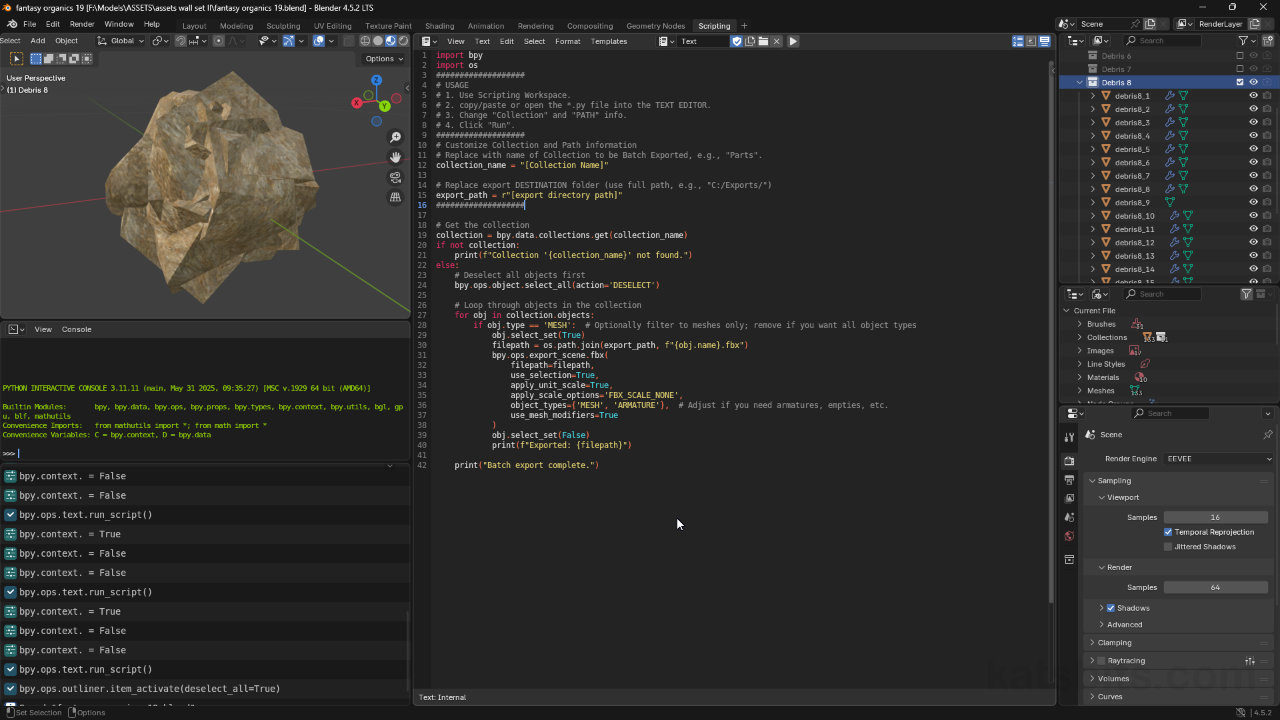
Script to Batch Export Objects to FBX for Blender
Table of Contents
Although Blenders FBX export feature (File » Export » FBX) can batch export the contents of a scene, its limited in what it actually does; it collates objects together, exporting everything as a single FBX file per Collection – it cannot individualise the contents of a Collection so won’t export them as separate (numerous) FBX files. To solve this issue the simple *.py script below can be used.
Download: KatsBits FBX Batcher (c. 10 KB | *.py).
Usage
To use the script; in Scripting Workspace, from the Text menu of the Text Editor, select Open (Text » Open) or drag-and-drop the *.py script. Alternatively copy/paste the script into a New text instance.
With script loaded, edit “collection_name” to match the scene Collection the contents of which are to be exported, e.g., “Debris 8“, this directs the script to look only at that Collection and its contents.
collection_name = “Debris 8”
Next, edit “export_path” to point to the location FBX files are to be saved e.g., “C:\Models\Parts\“. Save the Blender file to ensure changes are locked in, then click the Run Script (play) button to execute.
Important: ensure the file/directory path is contained within the start and end quotes, i.e., “[here]”.
export_path = r”C:\Models\Parts\”
Scene setup
As the script exports everything that’s in a Collection, ensure objects to be excluded are (temporarily) moved before running the script. Alternatively (temporarily) move meshes to be exported into a dedicated ‘export’ folder and run the script against that. The script also assumes typical export properties, that Apply Transforms, Scale, and Modifier‘s are wanted.
Design note: texture and/or image paths are written based on path/location references set in each respective Material that may, depending on how the files are to be used, necessitate some (re)organising or re-linking assets after-the-fact.
