Toolkit – Weight Painting Clothing or Accessories Not Working
Table of Contents
Description
When making clothes in newer versions of the IMVU Toolkit for Blender, post 1.2.x, meshes need to be set up in a particular way so they can then be weight painted. If this is not done, or the relationships between mesh and avatar skeleton are not properly established, weight painting is functionally blocked; switching to Weight Paint mode does nothing. The fix for this is to remove all references and reconnect.
- Blender 5.2 LTS with IMVU Toolkit v 1.2.10 loaded.
Duration: total c. 5 hr (00:05:00).
Info: 1080p.
Suitability: Beginner+.
Source: n/a.
Product ID: n/a.
Default Avatar
After creating a new clothing project, the Clothing Tool defaults to displaying the base avatar (selectable as Male, Female, Male 1.5 and Female 1.5) in a T pose, a standing pose with the avatar holding its arms out to the side. This initial set up is simply to make it easier to mesh clothing or accessory items around the avatar absent the visual distractions of the underlying avatar rig being shown.
The default state of the Clothing Tool is to simply drop in the avatar so items can be made easily without skeleton distractions.Clothing Bones
Clothing Bones don’t specifically need to be visible all the time but are needed to weight paint clothing and accessory meshes so they move properly with the avatar. By default they are disabled/not shown. To enable/show the weight painting skeleton, in the Sidebar make sure the Show Clothing Bones checked. This can be toggled into Pose Mode for weight painting.
Important: Extra bones… [more]
Depending on the Toolkit version, looking closely at the weight painting skeleton a number of bones are shown at the very end of bones chains; fingers, feet and head. DO NOT USE these bones. They are present simply to indicate the ‘termination’ or end of a bone chain and do not serve any purpose beyond that – weight painting finger nails to these will cause issues.
Do not use the extra bones at the tips of the fingers, these serve no purpose for clothing and accessory making.Design note: Clothing bones don’t articulate/move… [more]
Enable Show Clothing Bones to be able to weight paint clothing and accessory meshes to the avatar.Bind Clothing
To properly weight paint clothing and accessory meshes for IMVU they need to be bound to the avatar skeleton. Without this meshes don’t deform with the avatar. Ensure the clothing or accessory mesh is select and click the Bind Clothing button in the Toolkit. In Modifier Properties check there is now an Armature modifier targeting Anim as the Object. In Object Data Properties check Vertex Groups is also now populated with a series of groups, each corresponding to a bone within the armature. With these available meshes can be weight painted.
Important: Auto weight… [more]
During the bind process bones weights are automatically assigned to the mesh being bound. The accuracy of this depends on the complexity of the mesh and how its structure corresponds to bone positions. As a consequence this might result in weights not being accurately assigned, or that additional, manual painting or editing is necessary.
Binding tries a ‘best-fit’ weight assignment which may create gaps or over-assignments across the mesh that need manual adjustment or fixing.Design note: Manually binding meshes… [more]
Ensure meshes are properly bound to the avatar skeleton by clicking the Bind Clothing button – this should be done for anything affected by the avatar and its skeleton.Weight Painting
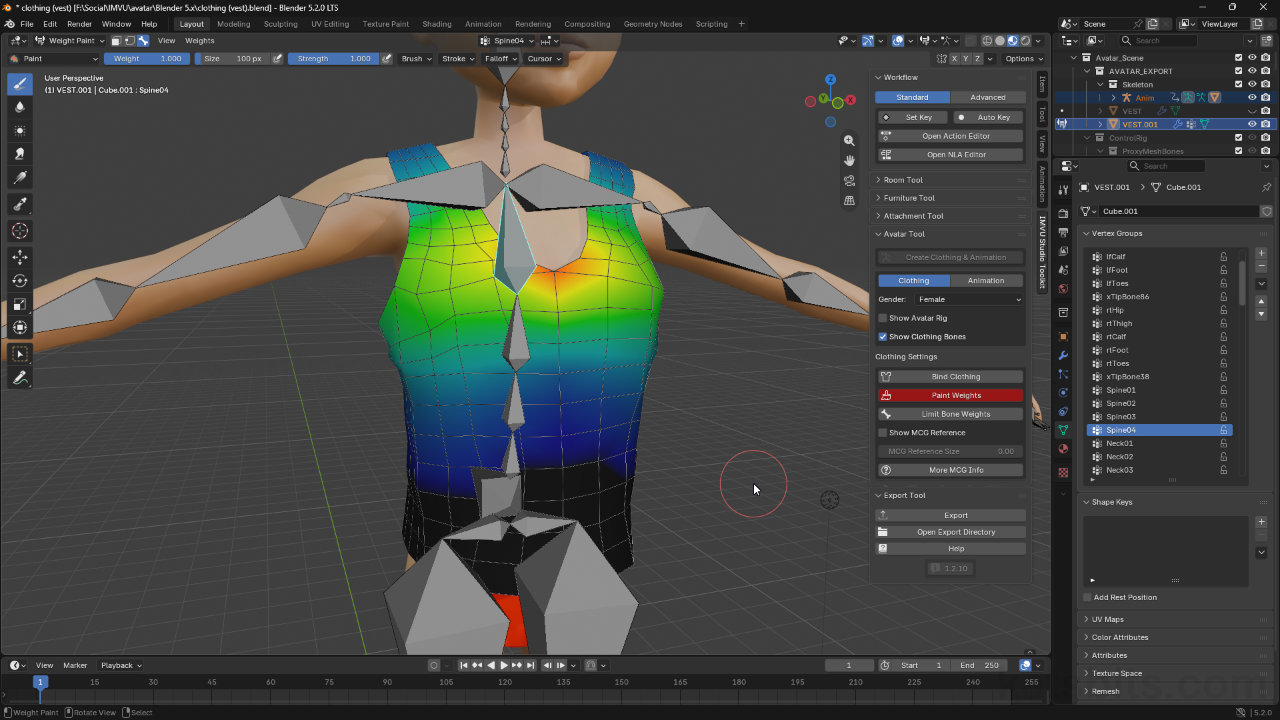
If Bind Clothing is correctly set up meshes can then be weight painted using bone or vertex groups selections. Both require switching to Weight Paint mode. Make sure Show Clothing Bones is active so the underlying skeleton is visible. Select the Armature first, mesh second, before switching using the Weight Paint mode selector or clicking the Paint Weights button in the toolbar.
Important: Cannot paint weights… [more]
Design note: Vertex Group selection… [more]
The Clothing Bones armature is not strictly necessary for weight painting as weights can be painted or edited by selecting individual instances from within the Vertex Groups index. This highlights the corresponding group on the mesh, displaying any colours where auto assigned during the ‘bind’ process.
Clothing Bones can be left hidden and weights painted or edited by selecting groups from within the Vertex Groups index. This make it easier to see what’s going on without bones obscuring the view.
If a mesh has been properly bound to the avatar, selecting a Vertex Group or a bone in Weight Paint mode, highlights the corresponding area of the mesh the group has influence over.Avatar Rig
To test clothing and accessory deformation that Avatar Rig has to be used. This is the same rig used to make avatar animations and poses but in this context it can be used to twist and pose the avatar to check how clothing-based items articulate as the skeleton moves. Once some weight painting has been done, toggle out of Weight Paint mode (or click the Paint Weight button) where the Clothing Bones skeleton were being used to highlight vertex groups for painting. Then, in the Toolkit click the Show Avatar Rig checkbox. A ‘wire’ rig appears and the avatars default pose will switch from the “T” to the ‘animation’ pose, arms by their side.
Design note: Optionally hide Clothing Bones… [more]
Select the wire rig and switch to Pose Mode from the main interaction menu (upper-right), then click a ‘wire’ object and move to manipulate (press G or R) the avatar. Depending on weight assignments, bound meshes will deform to varying degrees showing where clothing and accessory items need adjustment.
To test mesh deformation the Avatar Rig needs to be used. Toggle this on in the Toolkit and in Pose Mode manipulate the rig to see how meshes articulate.Live Weight Painting
The Clothing Bones skeleton is fixed in the “T” pose by default so is generally used just to establish the initial weight values painted to a mesh. To then test a clothing items or accessories, workflow needs to be switched to using the Avatar Rig. Here, while meshes can be deformation tested, they can also be weight painted ‘live’ – rig can be moved, mesh deforms, weights can be (re)painted, adjusting deformation based on the temporary pose.
Design note: Hide clothing bones… [more]
To do this, toggle out of Pose Mode, select the clothing or accessory mesh, and switch to Weight Paint mode (or click the Paint Weights button in the Toolkit). The mesh highlights the vertex group associated with the last bone selected, allowing the group to be edited. To select other groups, use the Vertex Groups index list to select groups and paint. Once done, toggle back into Pose Mode for further testing.
While the Avatar Rig is active it’s also possible to paint or adjust weights relative to it by switching between posing the avatar, selecting the mesh and painting weights in Weight Paint mode.


Timestamps
Times are approximate;
– n/a
