Export *.obj Models from Gmax
Although Gmax is a functional tool for creating content for games, exporting models for use in-game is tricky because the application has intentionally limited import and export capabilities unless provided through the use of an addon called a "Game Pack" – each allows content to be exported for game use the pack is associated with, "Tempest" for Quake 3 powered games for example. As an all-purpose modeling tool this means content cannot ordinarily be exported or saved without use of an appropriate Pack.
Despite this inhibition it is possible to use third-party scripts that impart usable functionality to Gmax and allow partial or full mesh, material and texture export. One such tool is the *. gmax to *.obj script (gmax-obj.ms).
Design note: getting Gmax files into 3DS Max.
Gmax to OBJ Prerequisites?
To export Gmax mesh, material and texture (bitmap) data the following tools are required;
- Gmax v1.2 (required).
- gmax-obj.ms export script (required).
- GMAX2OBJ.ms (optional exports w/out materials).
- NotePad or similar raw text editor.
Gmax should be installed as normal, typically C:\Program Files\gmax\ or similar. With the MaxScript extracted from the downloaded *.zip to a convenient location, e.g. the Desktop.
Design note: download gmax-obj.zip and extract gmax-obj.ms to the desktop or other location (script does not specifically need to be placed in gmax/scripts/ as the file is loaded from the Listener window rather than directly from the "Utilities" panel as might be otherwise expected). Note that gmax-obj.ms includes Material data, GMAX2OBJ.ms does not.
Prepping Models in Gmax
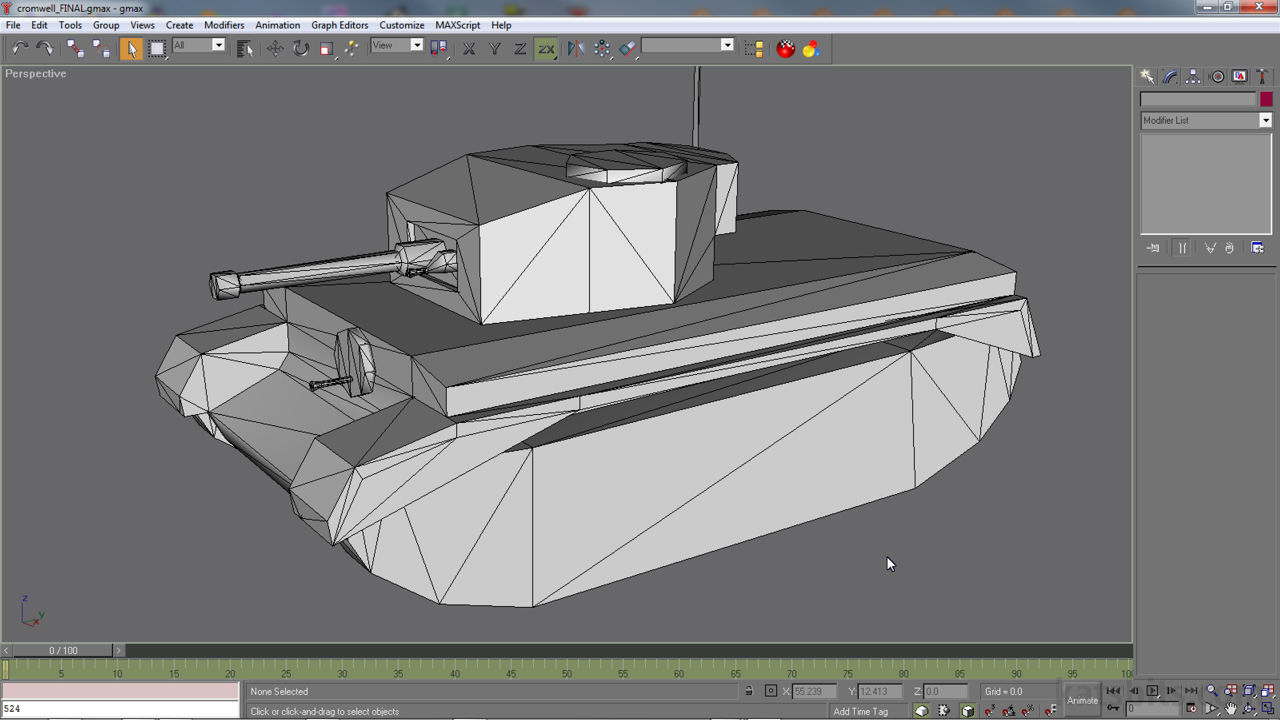
Below is a simple low resolution model of a Second World War British Cromwell tank. Its comprised of several ‘elements’ attached together based on material assignments, a single multi-material with two slots, one for the upper and hull, the other for the tracks, both to help distinguish mesh sections and allow application of separate images to the model, which has been UV mapped to accommodate this.
Design note: for the purposes of exporting models from Gmax using the technique explained below, UV mapping and the application of bitmap images is optional as the script only exports mesh and basic material data – UV’s and image data is not included/is ignored.
Models to be exported typically need to be "Editable mesh" objects, surfaces consequentially being broken down into triangles (the mesh is "tessellated" or "triangulated"). This means "Boolean", "spline" and other ‘vector’ or ‘dynamic’ content will need to be converted to meshes before export.
Design note: although the Wavefront OBJECT format can parse and use quadratic mesh data, most game related content typically requires models be tessellated and broken down to triangles.
In additional to the above, to ensure error-free export the "Modify" stack should be ‘collapsed’ so edits and modifications to the model are applied – right-click the "Modify" aperture (where modifiers are listed when assigned) and select "Collapse All" from the menu that appears. Similarly check meshes are not grouped – from the main interface menu click "Group" then "Ungroup".
Design note: export is selection based so objects do not explicitly need to be joined together although doing so may help in certain instances – select a mesh in the main 3D window then click the "Attach" button (displayed in "Edit Geometry") in "Modify" properties, left-click additional meshes to join them together.- groups of objects may need to be ungrouped and broken back down to their original state. If these operations are not done the script will likely error out when run.

The model to be exported to OBJ from Gmax, a low-poly British Cromwell tank – meshes have been joined together based on material assignment, and although not required, UV unwrapped and textured with a bitmap showing the objects wireframe outline
MAXscript Listener and Gmax
In this particular instance, exporting models from Gmax is performed using the "MAXScript Listener" and not as a direct ‘File’ menu ‘Export’ operation. Selections are instead parsed and written to the Listener window ready for the next step.
Design note: absent an appropriate GamePack, import/export options are limited – for example export is limited to the now obsolete, *.p3d, Plasma format.
When starting a new project in Gmax the "Create" Command Panel is displayed by default on the right hand side (a tab illustrated by a ‘pointer’ icon). To access the "Listener" click the "Utilities" tab (illustrated by a hammer icon) then the "MAXScript" button. A new set of properties will appear below. Click the button titled "Open Listener". A text editor like window will open. This is the MAXScript Listener.
Design note: the listener may open with some text already present, simply select all (Ctrl+A) and delete.

Opening gmax’s "MAXScript Listener" window from the "Utilities" Control Panel (the hammer icon) – the ‘welcome’ text that appears can be selected and removed (deleted)
Running Max Scripts in Gmax
Before running the gmax2obj export script, make sure all meshes to be included are selected in the main workspace viewport/s otherwise the script may default to exporting everything.
Design note: export is selection based otherwise defaults to exporting the entire contents of the Scene, which may result in crashing Gmax.
Once the items to be parsed are selected, in the MAXScript Listener click "File" menu option then "Run Script…" ("File » Run Script…"). A standard Windows Explorer file browser window will appear. Browse to "gmax-obj.ms", e.g. the Desktop, then click "Open". Gmax will immediate load the script and automatically begin parsing the scene/selections, dumping the converted data as plain text into the Listener window.
Design note: Gmax may take a moment to parse the mesh selection depending upon their respective complexity and how much of it there is – output is ‘monitored’ so problems during the process tend to result in stoppage or incomplete text.

The Gmax to Object export script is run from the Listener rather than the main menu- click "File » Run Script…" to access the file browser…

… locate the extracted *.ms file, highlight and then click "Open"…

Gmax will then automatically run the script and parse the selected data dumping plain text into the Listener window – the start of the text dump show above

End of output show above
Select, Copy & Pasting Parsed Data
Once the process is complete, the Listener will contain lines of plain text that now need to be copied to an external document. Before doing this select the first few lines (left-click drag) and delete, for example;
Welcome to MAXScript. (delete)
Copy and paste the following lines into a (delete)
text editor, and save them as a .obj file. (delete)# —————– (keep from this point on)
# Start of obj file
[…]
Next click "Edit » Select All", or press "Ctrl+A", to select the remaining output. The text will highlight black as the cursor jumps to the last entry it can include in the selection. Click "Edit » Cut", or press "Ctrl+X", removing the text from the output Window.
Design note: the Listener supports limited selection capabilities, for most models this means having to use copy/cut/paste a number of times to complete a transfer – using ‘cut’ ensure keeping place in larger files that may otherwise be swamped with data.
Open NotePad or similar raw text editor and press "Ctrl+V" to "Paste" the clipboard contents into the file. Return back to the Listener, Select All ("Ctrl+A") and again ‘cut’ ("Ctrl+X") it from the file. Paste into the new text document making sure the cursor is placed as the very end of the previous content drop to ensure proper continuation. Repeat until all text from the Listener has been cut and placed into the new text document in NotePad et al.
Design note: the Wavefront OBJECT format is text based so a raw text or code editor needs to be used to cut/paste the Listener window output. Doing also eliminates the possibility of formatting characters corrupting the subsequent file once saved.

Limited selection is available in the Listener so cut/pasting may need to be done several times depending upon the amount of data that’s been generated

Content is CUT rather than COPIED, then dropped into an open instance of NotePad of similar – shown above the resulting text is pasted into NotePad++. Make sure the mouse cursor is placed at the very end of each cut/paste action to ensure proper data continuity
Save New Document as *.obj
Once all the text has dropped into the new NotePad document the file just then needs to be saved with the appropriate file extension, *.obj. To do this, from the "File" menu select "Save As…". The standard Windows Explorer dialogue will appear. Here make sure the "Save as type:" option is set to "All Files (*.*)" to ensure Windows doesn’t append the file with *.txt. Name the file and append typing ".obj" to set the ‘type’ manually. Click "Save" to complete the process.
Design note: the file dialogue options and their appearance may differ slightly from the above based on the program used to paste the Listener content. Despite the above the file may still be shown and/or opened as a text document. If this happens it means Windows likely has "Hide extensions for known file types" active, meaning the saved file will be appended ".obj.txt" instead of ".obj". To fix this, open Windows Explorer and;
– for WIndows 8 and WIndows 10: click the "View" tab then the "File name extensions" checkbox to activate.
– for Windows 7: click the "Tools" menu to access "Folder options…". Click the "View" tab then uncheck "Hide extensions for known files types".
Re-edit the file name as needed to remove the ".txt" append where necessary.

Creating the file using "Save As…" to write the text file as and ".obj" instead of ".txt"
Conclusion: Import OBJ into other 3D Applications
With the Gmax data now saved as an *.obj file, to load this as a mesh into another program a supported Wavefront OBJ import capability will be needed. If not available, and depending upon the destination application, Blender can be used as an intermediary converter, the file being saved to *.dxf or *.3ds for example.
Design note: the Wavefront OBJ format is supported by 3DS Max, Maya and all the other major 3D application so importing should be as simply as choosing the menu option and selecting the file to load (which will open with material assignments but without UV maps or textures/bitmap images).

The gmax exported *.obj file of the Churchill tank model imported into Blender 3D, UVW mapped, materialed and textured

UVW map of the Churchill tank after import and clean-up
Video
Video walkthrough of the Gmax to object (*.gmax to *.obj) export process using the gmax-obj.ms Max Script.
Duration c. 2 mins.
Export OBJECT models/meshes from Gmax using the Listener

