Quake III Multiplayer Server Setup
Setting up a Quake 3 multi-player online or LAN server is relatively straightforward but does require some knowledge of various commands and functions depending upon the complexity of the game play sought. The following information will create a basic server for network LAN or Internet based multiplayer games.
Basic Quake 3 Server set-up
Setting up a multi-player server is much the same as creating a single-player "Skirmish" game with Bots as both single and multi-player make use of the same fundamentals; a server ‘instance’, a ‘level’ around which Bots?player roam, and a number of player ‘slots’ that can be occupied by Bots or players (people). To create a basic Quake 3 server;
- Start Quake 3 as normal and click "Multiplayer".
- In "Arena Servers" screen click "Create", second button bottom right.
- In "Game Server" screen click a thumbnail to select the initial level, then set the "Game Type:", "Free For All", "Team Deathmatch", "Tournament" or "Capture The Flag" (level selections may change based on mode compatibility). Click "Next".
- In the ‘bot’ options screen;
- set the "Bot Skill:" selecting from "I Can Win", "Bring It On", "Hurt Me Plenty", "Hardcore" or "Nightmare!".
- set the number of slots available for either "Bot" or "Open" (players access).
- set the "Frag Limit:" (kill limit), "Time Limit": (timed game), "Pure Server:" (dis/allow custom content), "Dedicated:" (runs a separate ‘server’ instance) and "Hostname:" (given the server a name).
- Lastly set "Punkbuster:" to prevent cheats/cheating (may be outdated).
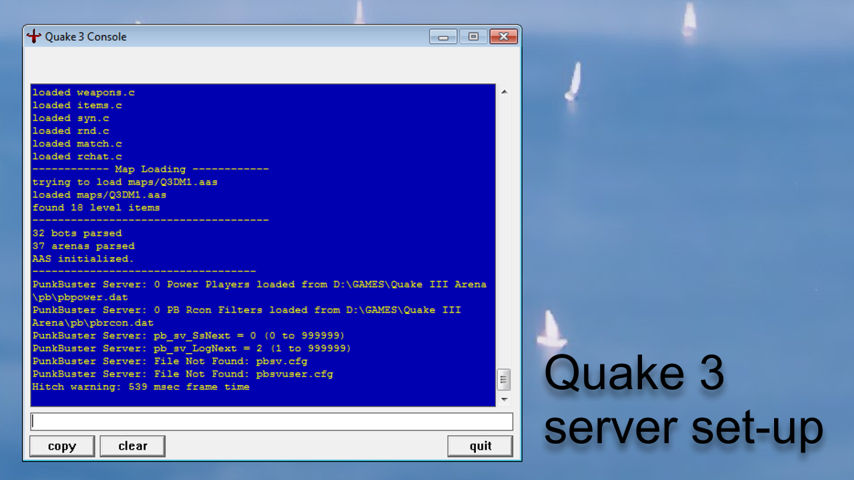
- Finally click "Fight" bottom right – this creates a server console on the desktop (dedicated) or launches into the game (non-dedicated).

In-game server settings to create a dedicated (stand along) Quake 3 game server (LAN or Internet)
Setting up a non-dedicated server to play against Bots and allow other players to join the game – launches into the game
Setting up a dedicated server which launches as a separate and minimised instance of the game – players connect to the server
More Advanced Quake 3 Server Settings
For more advanced control over the server the use of text based commands is necessary and/or the a customised ‘configuration’ file within which the games parameters are listed. Generally speaking this approach is used when running a "Dedicated" server but can be used in both "Dedicated" and "Non-Dedicated" instances of the game.
Design note: most commands are typed into the Console input field, the white text box at the bottom of the interface. Alternatively, commands can also be typed into the in-game console but doing so requires the command prefix ‘/‘ – for the server Console most commands carry a ‘type’ or ‘group’ prefix, i.e., "sv_" (server) or one of several other prefixes "r_", "com_", "cg_" et al.
Once a server instance is running simply type the appropriate command into the text field and hit "Enter", for example changing the initially selected level to q3dm17 using;
map q3dm17
Design note: some commands may require the a restart of the server and/or game instance (requires a hard "quit" and game restart).
If a Dedicated server is set up for play over the Internet, a ‘ping’ (a packet of data containing basic details about the game you’re setting up) will be sent to the main Quake 3 server to check what IP addresses are available for assignment. Once an address has been resolved from the available pool, other players will be able to search for, find and join the server.
Design note: for more help setting up a server search the ‘Quake 3 Help System’, "Start » Quake 3 Arena » Help System" (if installed to the default location click here to open), under ‘dedicated server’ is listed some of the basic’s; game types, memory allocation, IP addressing etc.
Once the initial game settings have been created using the in-game menu options a stand-alone Console will start on the Desktop allowing access to the game via LAN or Internet. When inputting commands to the Console text does not require the "/" prepend (type "map q3dm1" instead of "/map q3dm1")
Connecting to the server
To join the game server now running the ideal situation would be to have two computers connected together via LAN, one as "Host" (the server), the other as "Client" (game). Or to connect via the Internet, once the server has pinged the Master and been allocated an ID, it’s possible to join through the Internet. It’s also possible to launch a new instance of Quake 3 and connect to the server directly by setting the network ‘browser’ to look for "Local" game instances.
Design note: generally speaking the computer used to run the server does not specifically need to be powerful because its not rendering to screen besides Console output. However, once other players start to join the demands this places on the system increase significantly. With this in mind two system features that make the greatest difference to overall performance are the amount of system RAM available and having a relatively fast, uninterrupted, connection to the Internet – setting up a server in the early days of Quake 3’s meant using dial-up modems that had connection pings averaging 300 in good areas, capable of hosting up to four players reasonably well. In the age of DSL, cable and high-speed fibre connections pings of 50 and far below are possible which, alongside more powerful computers, enables much larger games to be played.
Rotating maps (cycling through several maps)
The most common changes to make to a running server is to change the initial level loaded at the games start. There are generally two ways this can be done; 1) manually typing the change, 2) initialising a script to automatically ‘rotate’ or ‘cycle’ through a list of levels. To manually change a level, in the Console type the following (where [mapname] is the name of the level to be loaded, i.e., q3dm5) and press "Enter";
map [mapname]
To automatically cycle a level selection first create a text file with the following contents;
// START of map rotate cfg file
// This config file cycles through the maps listed below in the game.
// Free For All mode.
set g_gametype 0
set m7 "fraglimit 20; map q3dm6; set nextmap vstr m16"
set m16 "fraglimit 20; map q3tourney4; set nextmap vstr m19"
set m19 "fraglimit 20; map q3dm15; set nextmap vstr m20"
set m20 "fraglimit 20; map q3tourney5; set nextmap vstr m21"
set m21 "fraglimit 20; map q3dm16; set nextmap vstr m22"
set m22 "fraglimit 20; map q3dm17; set nextmap vstr m7"
vstr m7
// cfg map rotate file - END
Save and/or copy/paste the *.txt file to the games root folder "/baseq3" then rename it to "maprotation" (or similar), changing the file extension to "*.cfg" (config), e.g., "maprotation.cfg".
Note : the values after "set…" and "vstr" ("m7", "m16" etc.) are instructions to the game to progress to the next level identified by the variable, "m16" represents "q3tourney4" in this collection which passes on to "m19", "q3dm15". The order of the maps being cycled can be changed but care must be taken to ensure the script properly instructs complete follow through.
Once the *.cfg file is saved to the baseq3 and a server or game instance started, the script can be run typing the following at the Console prompt;
exec maprotation.cfg
Upon execution the current game will stop and the first map in the rotation sequence loaded, brining in any bots and players from the previous session.
• • •
Problems connecting to Quake 3 server over the Internet
Connecting to a Quake 3 server requires a properly resolved IP address relative to the games expectations. In this regard, whilst everything else connected to the Internet may work without issue and the game/server otherwise game runs without issue, some players may not be able to connect no matter how good their connection. The culprit for this appears to be related to the way Internet Service Providers assign IP address to connections made to their services which, in many a typical instance, is not a fully resolved IP but instead a ‘local network’ address that piggybacks the Service Providers system/s.
The ramifications of this tend to mean it being difficult to discover the connections actual IP address, even when using an online tool like ‘what is my IP‘, as they’re more often than not list the Service Providers IP rather than the customers IP connecting to the Internet. Unfortunately in such instances, there doesn’t appear to be an easy solution to this (lacking a fully resolved IP address), and due to the way Service Providers operate, the Quake 3 server Admin likely won’t discover this issue until setting up a game server. In essence ISP’s don’t like customers running software that makes persistent demands on their Networks, doing so may have the customer fall fowl of "Fair Use" Terms of Service clauses.
Quake 3 server & firewall’s
Design note: when this article was originally written dial-up modems were the normal way to connect to the Internet. This type of high latency connection also meant inbound intrusion was a relatively rare occurrence so personal firewall’s and network routers were relatively uncommon in gaming circles. Today connecting to the Internet typically obligates the use of a firewall of some description either as a separate hardware device or as a component of a software solution.
For difficulties connecting to ‘local network’ games, i.e., connecting to the game server over LAN or as another game instance of the same computer, and assuming the games basic settings are correct, and the game is being browsed for using the "Local" option instead of the "Internet", traffic may be being blocked by a firewall. To solve this issue the type of block needs to be determined; is it a ‘program‘ or ‘IP/Network‘ block.
- Program Block: a ‘program block‘ is likely to be client based; basically Quake 3 can’t find an open port (gateway) on to the local network, typically a firewall will be hard blocking Quake 3’s network access rights. If this is the case then Quake 3 needs to be granted specific permission to bypass the block and access the local network.
- IP/Network Block: a ‘network or IP block‘ is typically an external block, usually implemented by an ISP, denying access to or from specific IP address and/or locations. It differs from a ‘firewall’ or ‘program’ block in that the User often has little control over the outcome of a block (the reason it’s in place and their ability to disable it). With that said an IP block can be localised in that, even on home or private networks, connections are assigned localised IP addresses that can be blocked in various ways.
To fix a software or local IP/Network block, access the firewall software or router and check through the various ‘block/allow’ settings for references to "Quake 3" as a program, or the local IP address used across the network to connect devices, i.e., 192.168.0.1 or 127.0.0.1. Alternatively it’s possible to connect computer directly by connecting them together using a ‘twisted’ or ‘crossed’ CAT5/6 cable.
Zonealarm and Quake 3 Servers
During a gama of Quake 3 when accessing the Internet the game may freeze or lock up. This is likely being caused by ZoneAlarm attempting to display a network access ‘warning’ popup in the Taskbar whilst the game is running full screen, which it is unable to do. To address the issue, first exit full-screen mode using "Alt+Enter", Quake 3 reduces to an instance running on the Desktop (‘windowed’ mode). Next go back into "Multiplayer" and access the network again, this time when ZoneAlarm throws up the network warning it should be visible. Set the appropriate option to approve or allow network access (along with ‘remember setting’ if available).
Design note: if the mouse won’t move outside the game instance press the "~" to open the in-game console, this usually releases the mouse allowing it to be moved outside the game instance. When setting up a game server ZoneAlarm may display another network warning message as incoming and outgoing connections are often dealt with on different IP’s or ‘ports’ (gateways).
If none of the above happens open ZoneAlarm and check the ‘permissions’ settings – with ZoneAlarm open click the "Program Control" menu item on the left. In "Main", and just below the "Help" icon, click "Programs" top right. A list of names will display, each being a program that has tried to get through ZoneAlarm on to the Internet. Find the entry representing "quake3.exe", highlight to display associated permissions, amend where necessary. FInally with ZoneAlarm still open, try accessing the network again, either access will be allowed or the permission warning will appear.
Design note: this also applies to setting up and running servers for Doom 3, Return to Castle Wolfenstein, Call of Duty, etc.. etc.. and using various different firewall software or hardware.

